




Vision Control App Overview
Understand the Vision Control App First
Before starting the firmware implementation, it is helpful to understand how the Vision Control App is used by the customer. The app is not only a test tool as it seems if you activate testmode. It is the user interface for finding fixtures, creating a wireless network, connecting to fixtures, reading status information, and controlling fixture parameters.
General app information, download links, feature descriptions, and tutorial videos are available on the Vision Control website:
https://visioncontrolapp.com/
Additional product and workflow information is also shared through the WeChat channel:
VCS Vision Control Solutions GmbH
The detailed app manual contains many screenshots and step-by-step explanations:
https://visioncontrolapp.com/manual/
Two Control Scenarios
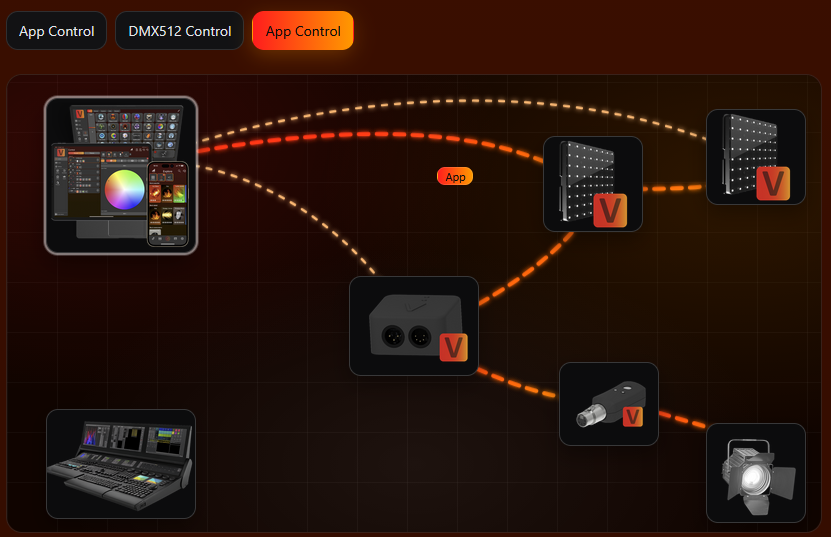
Vision supports two main control scenarios. They are important for the implementation because they explain why DMX Control and App Control must behave differently.
Vision DMX Control
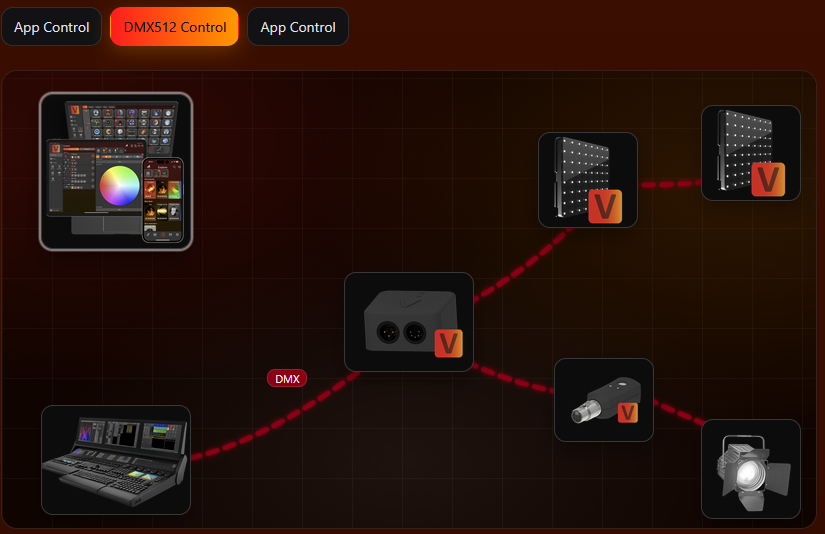
In DMX Control, the fixture behaves like it does with wired DMX. Vision transports the DMX data wirelessly, but the fixture should use the same DMX personality, DMX start address, and DMX/RDM logic as the wired implementation.
Vision App Control
In App Control, the app controls the fixture directly through the Vision network. The app needs predictable parameter positions for fixtures of the same type, so the current Vision frame uses the App Control Configuration. This does not replace the saved RDM settings of the fixture.
Basic App Workflow
- Install and prepare the app. Install Vision Control on iOS, Android, or Windows. On first start, grant the required permissions, especially Bluetooth access.
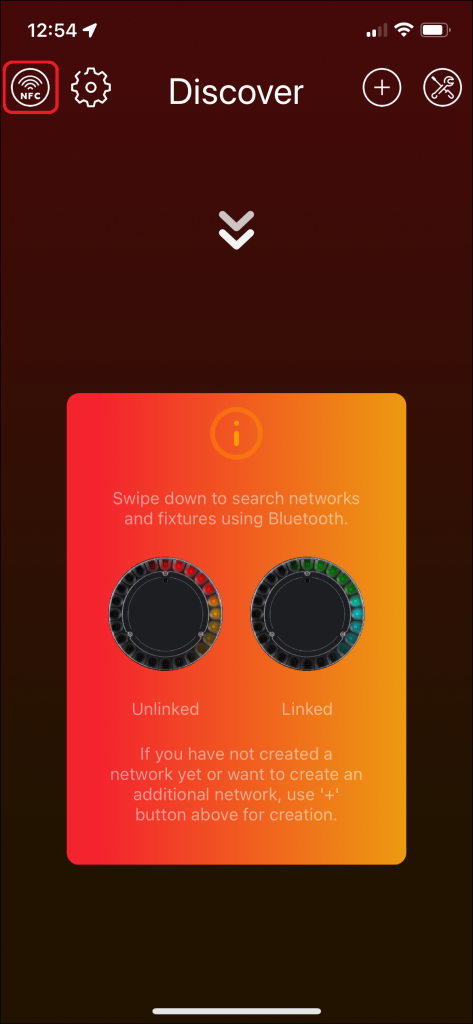
- Search for fixtures. Open the Discover page. On mobile, swipe down to scan. On desktop, use the refresh button. Fixtures must be powered on, within radio range, and configured to use Vision as input source.
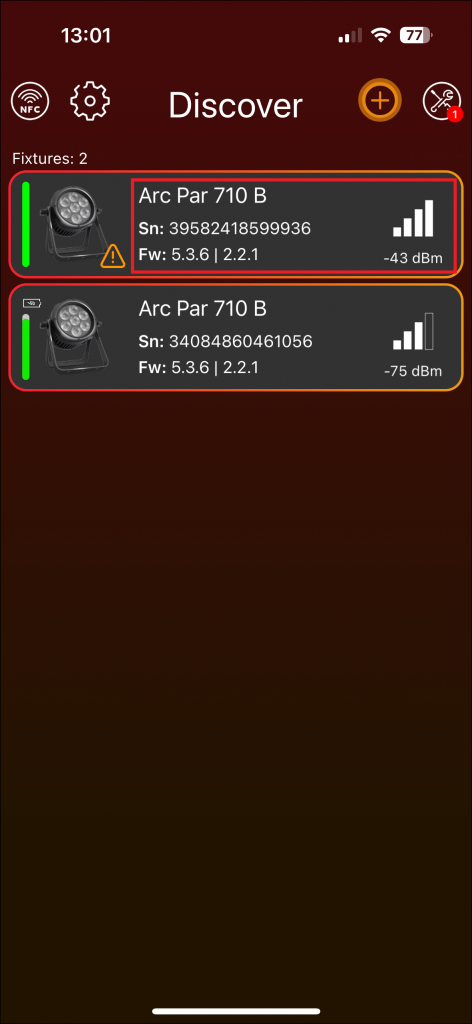
- Connect to a fixture. Click the fixture frame to open the fixture page. The fixture page shows important status information such as input source, DMX address, DMX mode, signal strength, firmware versions, warnings, and errors.
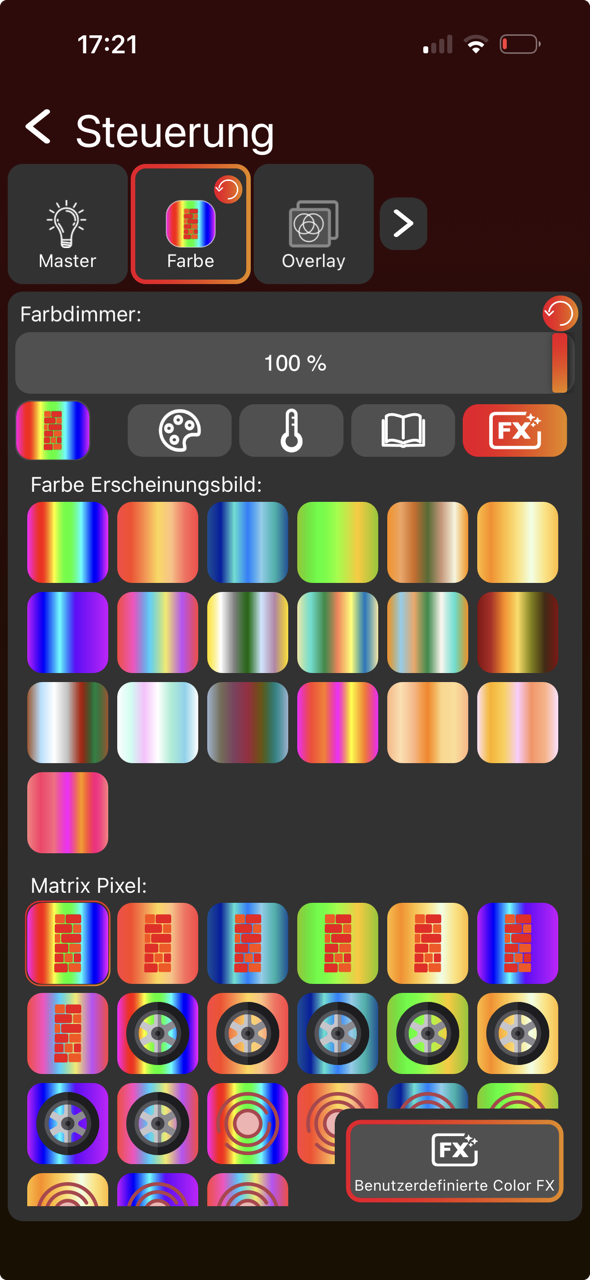
- Control fixtures. Select groups or fixtures on the Lights page, then adjust values on the Control page. Only supported fixture components are shown, for example dimmer, color, pan, tilt, zoom, projection, or special functions.
- Use status and test functions. Use identify, reset, test modes, warning/error information, firmware updates, and RDM-related tools to verify the fixture during development.
Example Screens From the Manual
The following screenshots show the basic app areas that are most important for implementation: searching for fixtures, reading fixture information, and controlling fixture parameters. Use the full manual for the complete explanation of every app page and button.
Why This Matters for Implementation
- The fixture must be discoverable before the customer can connect or link it.
- The app reads fixture information through RDM, so RDM data must be correct and understandable. RDM Communication must be always available.
- The input source must clearly show whether the fixture is controlled by Vision, DMX, or another source.
- DMX Control should reuse the same behavior as wired DMX.
- App Control must use the App Control Configuration so the app can show and control the correct fixture parameters.
- Warnings, errors, firmware versions, and test functions should be implemented early because they make development and customer support much easier.