


Create App Library Oem Branding
This page explains the recommended OEM and branded fixture workflow. Read this before creating the final fixture entry on the Vision Web Service.
The RDM Manufacturer ID together with the RDM Device Model ID identifies the exact fixture type. These two values cannot be changed after a fixture is released. Changing them would mean that fixtures already in the field may no longer be recognized. Descriptions, images, website URLs, resources, and names can still be changed later.
Choose the correct fixture identity first
Before creating the fixture entry, decide who owns the final fixture identity. The fixture identity is not only the visible brand name. It is the combination of RDM Manufacturer ID and RDM Device Model ID used by the app to find the correct app data.
| Situation | Recommended action | Reason |
| The product may be sold to multiple customers. | Create the first fixture as a supplier sample with your own company name and your own RDM identity. | The same tested sample can be used before a final customer brand is known. |
| The customer has not provided the final RDM Manufacturer ID or RDM Device Model ID. | Create the first fixture as a supplier sample. | The released fixture identity must stay stable. Do not guess or temporarily use customer IDs. |
| The customer approves the sample and orders a branded product. | Create a second separate fixture entry with the customer's branding and final RDM identity, then request another release. | The branded product gets its own stable app identity without changing the already released supplier sample. |
| The product is made exclusively for one customer and the customer provides the final RDM information at the beginning. | Create the branded fixture directly. | The final identity is already known, but it still must not be changed after release. |
Recommended workflow
1. Development sample
Create the first sample fixture in your own company, without customer-specific branding, and use your own naming scheme, your RDM Manufacturer ID, and your RDM Device Model ID. This fixture is used for internal development, demonstrations, and customer samples. It does not need to be visible publicly in the app.
RDM Manufacturer: your company Manufacturer ID
RDM Device Model ID: your fixture-specific Device Model ID
Example with the Vision Core Module:

When the sample is finished and verified, request a release on the fixture page. Until release, the fixture remains internal and only authorized accounts can access it.
2. Customer sample
After the supplier sample is tested and released, ship it to the customer for testing. If the customer wants a branded fixture, continue with the branded production fixture. If no branding is required, you can continue directly with production.
3. Branded production fixture
For a branded product, adapt the firmware and product data to the customer's requirements. Create a second separate fixture entry on the server with the brand's final RDM information, request a new release for this branded fixture, and only then start branded production.
RDM Manufacturer: brand's Manufacturer ID
RDM Device Model ID: brand's fixture-specific Device Model ID
Keep the supplier sample and the branded production fixture separate. Do not overwrite the released supplier sample with customer-specific RDM identity.
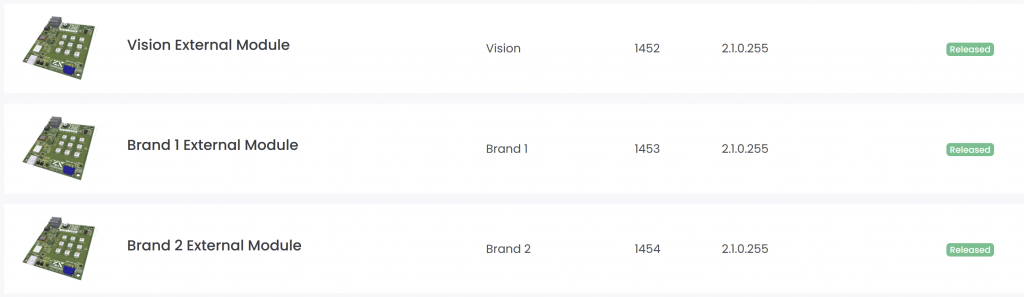
After the branded fixture entry is ready, you can share access to the fixture with the brand so they can maintain product data or release information if required.
Bootloader for branded fixtures
A separate bootloader may be created for each branded version of a fixture. However, if one common bootloader shall be used for the supplier-branded product and all customer-branded variants, the signing identity and the identity advertised to the app must be handled separately.
In this example, the same product is sold under the Chinese Supplier Brand and under two different Customer Brands.
Bootloader requirements
| Requirement | Supplier Brand | Customer 1 Brand | Customer 2 Brand |
| Bootloader must accept firmware signed with | Supplier RDM Manufacturer ID + Supplier RDM Device Model ID | ||
| Bootloader must read from the application firmware and advertise to the app | Supplier RDM Manufacturer ID + Supplier RDM Device Model ID | Customer 1 RDM Manufacturer ID + Customer 1 RDM Device Model ID | Customer 2 RDM Manufacturer ID + Customer 2 RDM Device Model ID |
| If the application firmware is unavailable or invalid, the bootloader must advertise | Supplier RDM Manufacturer ID + Supplier RDM Device Model ID | ||
Application firmware requirements
| Requirement | Supplier Brand | Customer 1 Brand | Customer 2 Brand |
| Application firmware update file must be signed with | Supplier RDM Manufacturer ID + Supplier RDM Device Model ID | ||
| Application firmware contains and advertises to the app | Supplier RDM Manufacturer ID + Supplier RDM Device Model ID | Customer 1 RDM Manufacturer ID + Customer 1 RDM Device Model ID | Customer 2 RDM Manufacturer ID + Customer 2 RDM Device Model ID |
In summary: the signing identity is always the Supplier Identity. The identity advertised to the app is the respective brand identity when valid application firmware is running. If the application firmware is unavailable or invalid, the bootloader advertises the Supplier Identity.
This allows one common bootloader to be used for all branded variants, while each bootloader that has, or previously had, valid application firmware still identifies the product using the correct customer-specific brand identity.