




Production Update Vision Module
This page describes how to update a Vision module with the final App Control Configuration. Use this step when the fixture was flashed without the final app data, or when the App Control Configuration was changed after the module was programmed.
When this is required
- The production flash file did not include the final App Control Configuration.
- The App Control Configuration was updated after flashing.
- A development module must be converted to the final released fixture data.
- The app shows that the fixture requires an App Control Configuration update.
The App Control Configuration must match the final firmware. If firmware and App Control Configuration do not belong together, App Control can behave incorrectly.
Update with the Vision Control App
- Power the fixture and open the Vision Control App.
- Scan for fixtures.
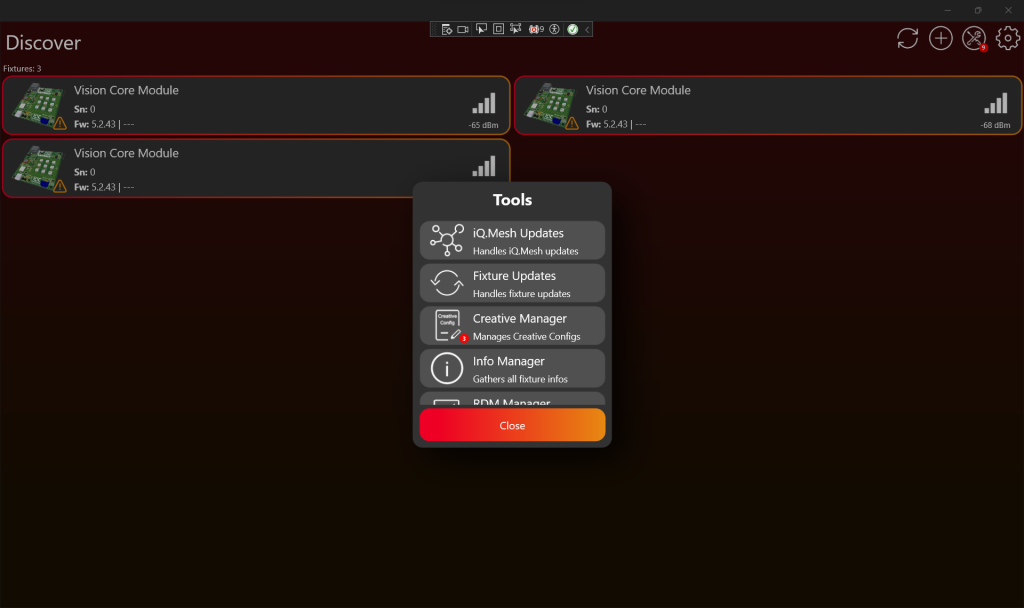
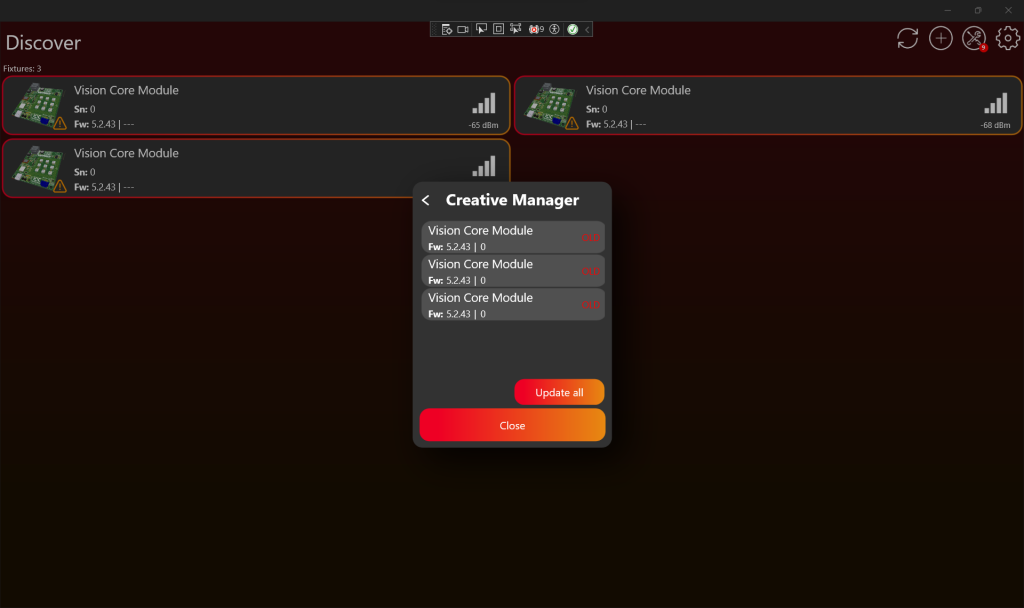
- Open the tools icon with the red badge.
- Open App Control Configuration Manager.
- Select the fixture or use Update all for all detected fixtures that need the update.
- Wait until the update is finished.
- Restart the fixture if the app or fixture behavior requires it.
- Scan again and confirm that no App Control Configuration update is pending.
After the update
Test the fixture directly in App Control. Check that the shown controls match the product and that every configured function reacts correctly. After this check, continue with production licensing.