




Production License Vision Modules
This page describes the production licensing step. Licensing activates a production license for each physical fixture. Do this after the fixture is implemented, verified, registered in the Vision App Library, and prepared with the correct Vision data.
Check license availability
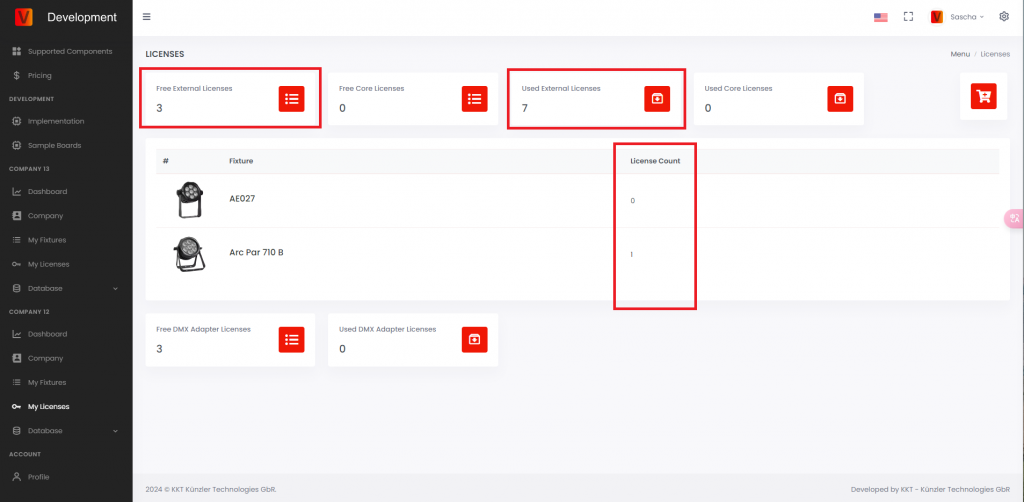
Open https://server.kk-t.eu/, log in, open your company, and go to My Licenses.
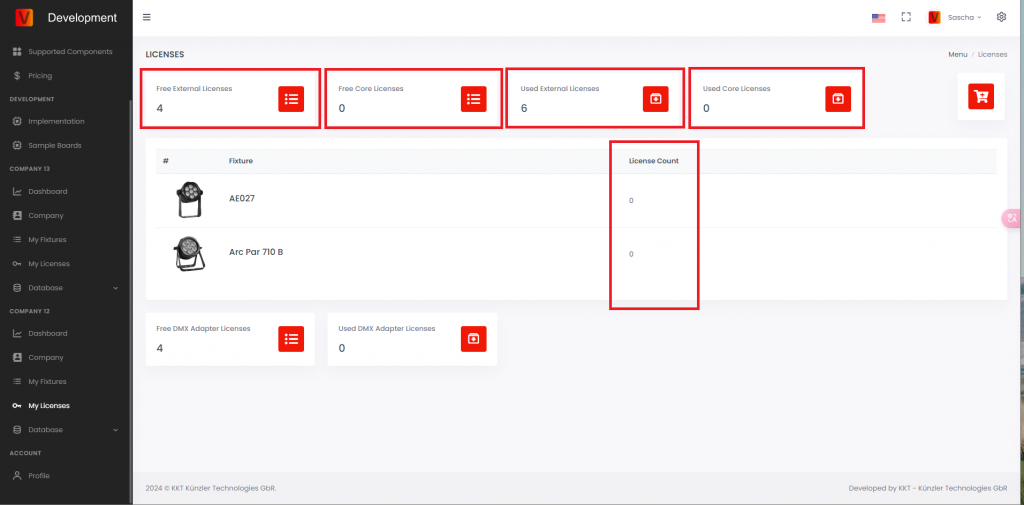
- Free External Licenses: purchased External Vision licenses that are not used yet. This value must be greater than 0 before licensing a new External Vision fixture.
- Free Core Licenses: purchased Core licenses that are not used yet.
- Used External Licenses: External Vision licenses already activated for fixtures.
- Used Core Licenses: Core licenses already activated for fixtures.
- License Count: number of licenses used by a specific fixture type.
Find unlicensed fixtures in the app
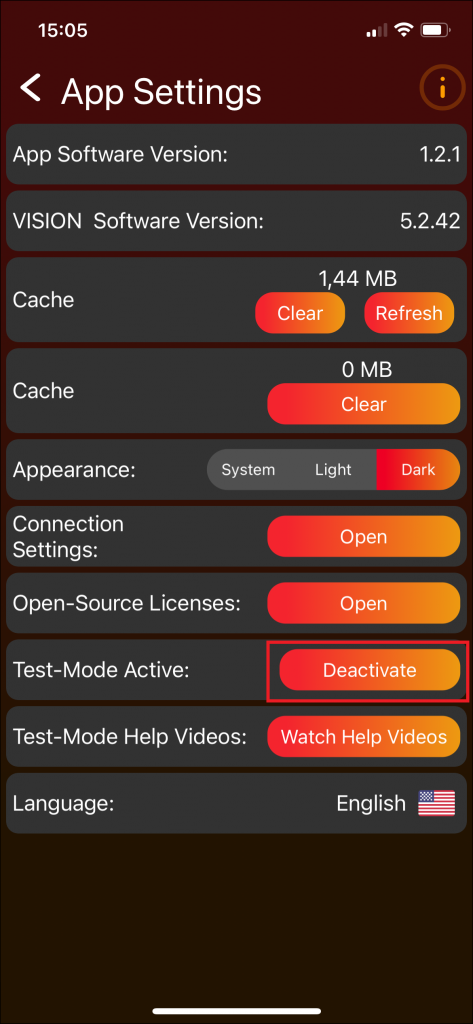
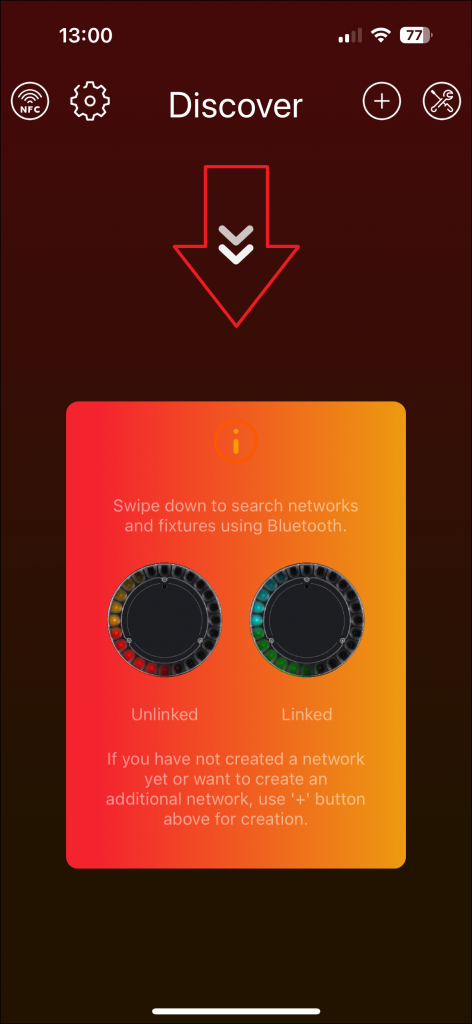
Open the Vision Control App and scan for fixtures. An unlicensed production fixture can be shown with a warning. The warning means the fixture is detected, but it cannot be used normally until a license is activated.
License the fixtures
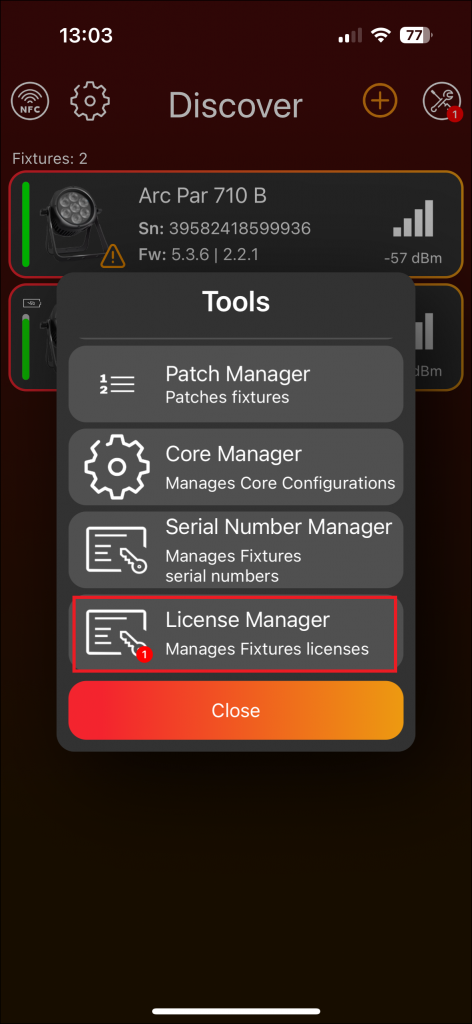
- Open the tools area in the Vision Control App.
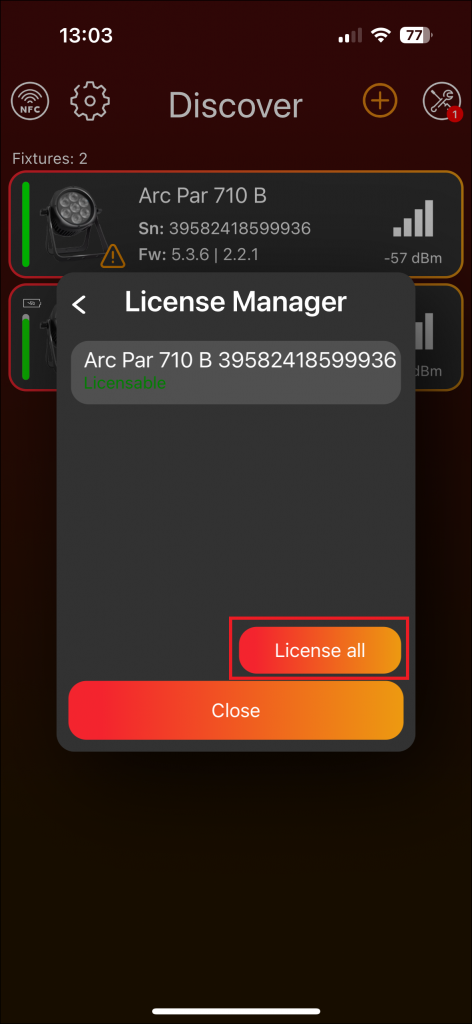
- Open License Manager. A red badge can indicate fixtures waiting for licensing.
- Check that the fixture is shown as licensable.
- Use License all if all listed fixtures should be licensed.
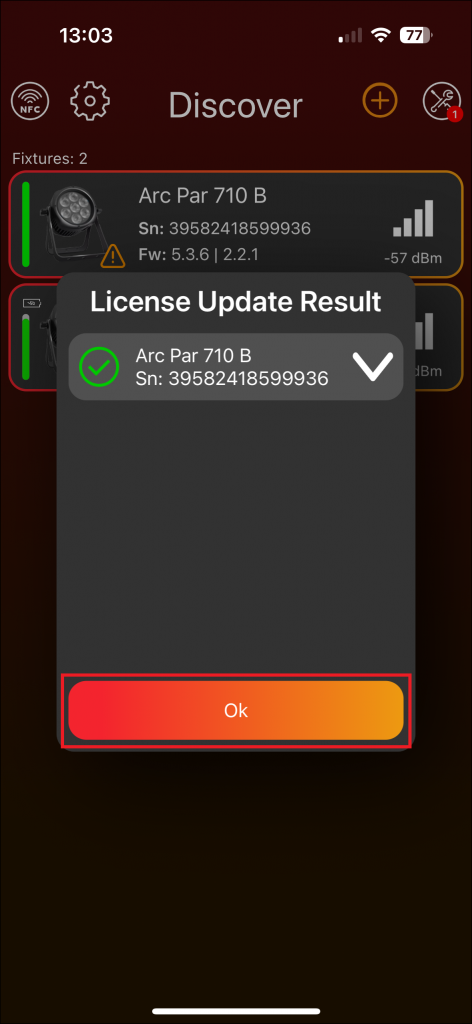
- Wait until the app confirms the licensing result.
Verify the license
After licensing, the fixture should no longer show the unlicensed warning and can be controlled with the Vision Control App. On the Vision Web Service, the free license count is reduced and the used license count is increased.
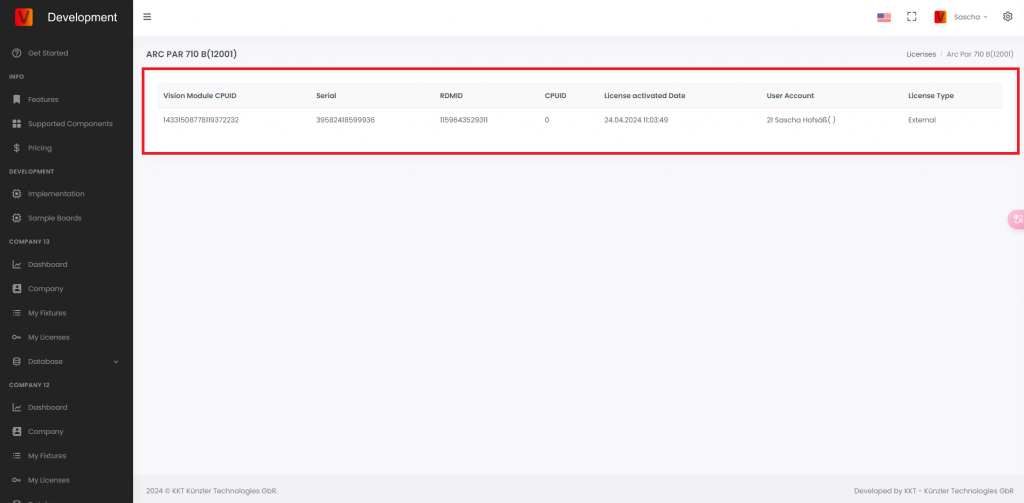
Open the fixture license details to see the licensed fixtures with serial number, RDM ID, and related information.