Here we will explain how to get a .Bin file which can be used to update your fixture via the Vision APP. if you have followed the Custom Firmware instructions it is possible to generate this file using the following instructions:
First open the Vision App on Windows. If you are not familiar with this step please check out the following site first:
https://server.kk-t.eu/ExternalVision/TestPreparations
Set the application into “Test Mode“ using the following procedure. This allows to use and see development fixtures which are not registered:
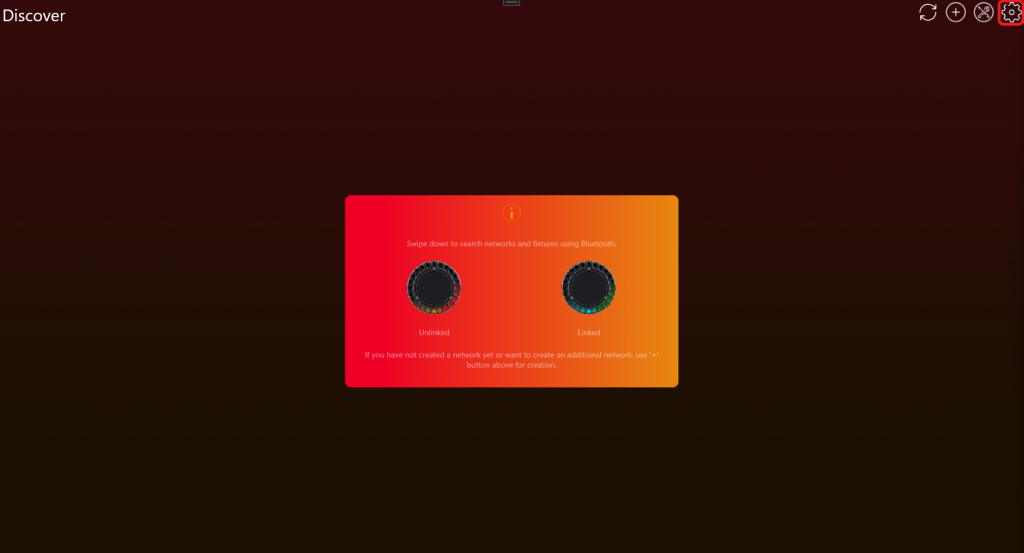
- Go to „Settings“ by clicking on the gear in the top:
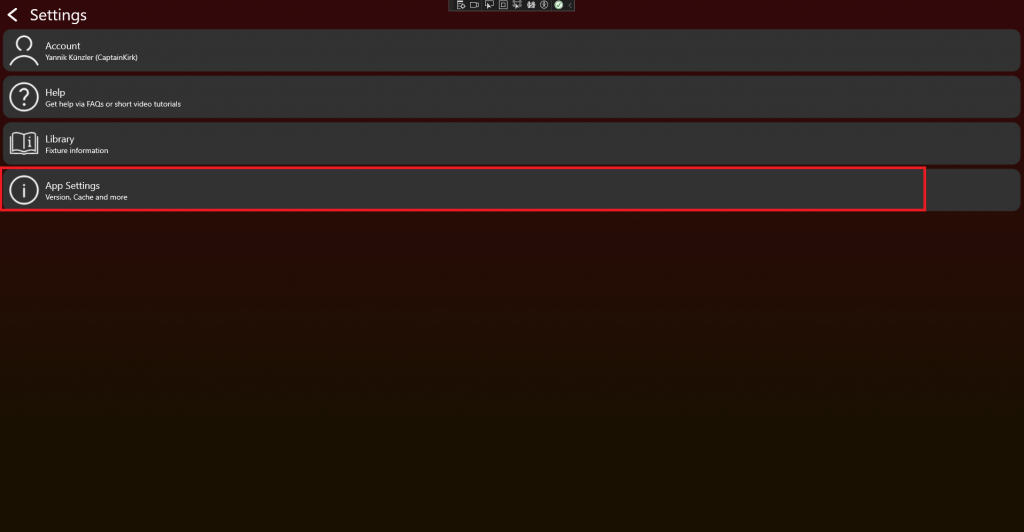
- Click on App Settings:
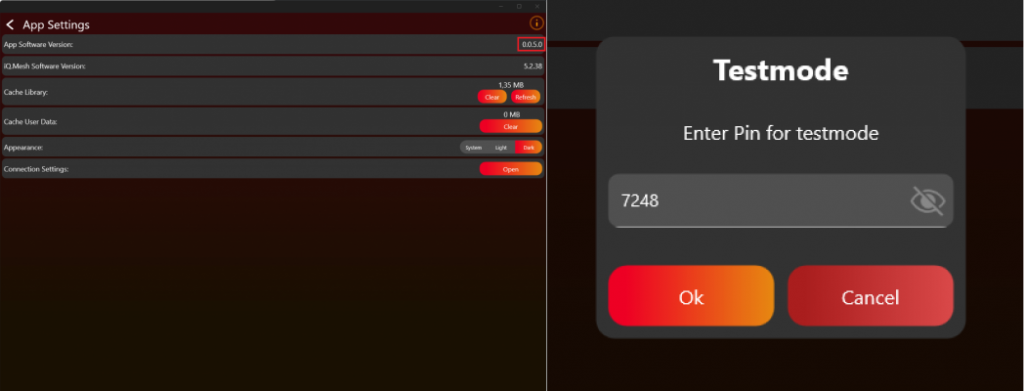
- Tab on the App Software Version label (0.0.5.0) two times. After that a prompt shows up. Type in the PIN “7248“. Then the Test Mode will be activated.
Now you have got the necessary functions available in the App. Go again to the settings tab.
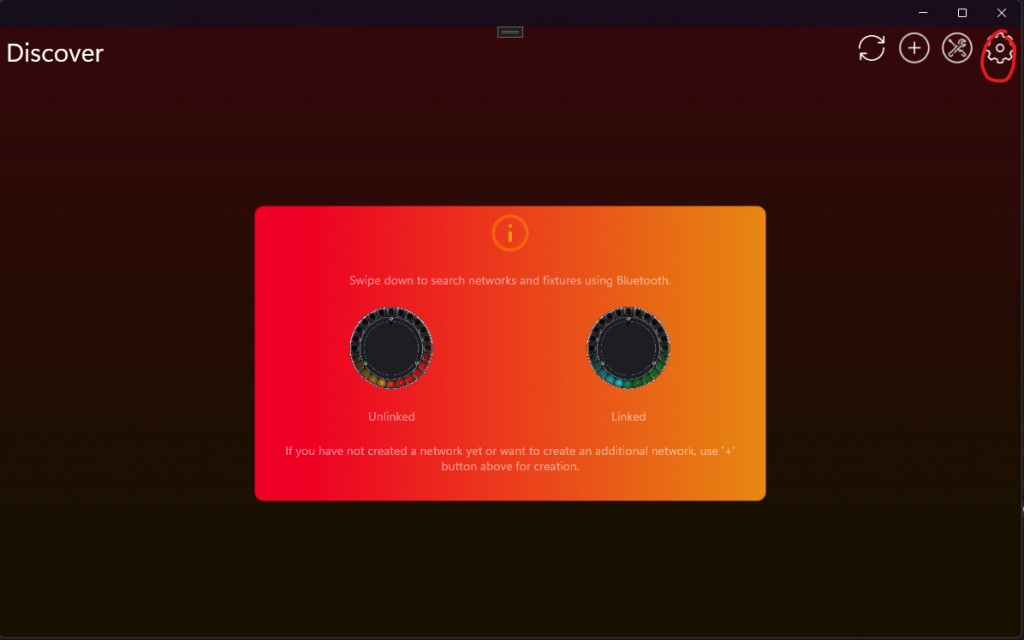
Now Developer Tools should be visible.
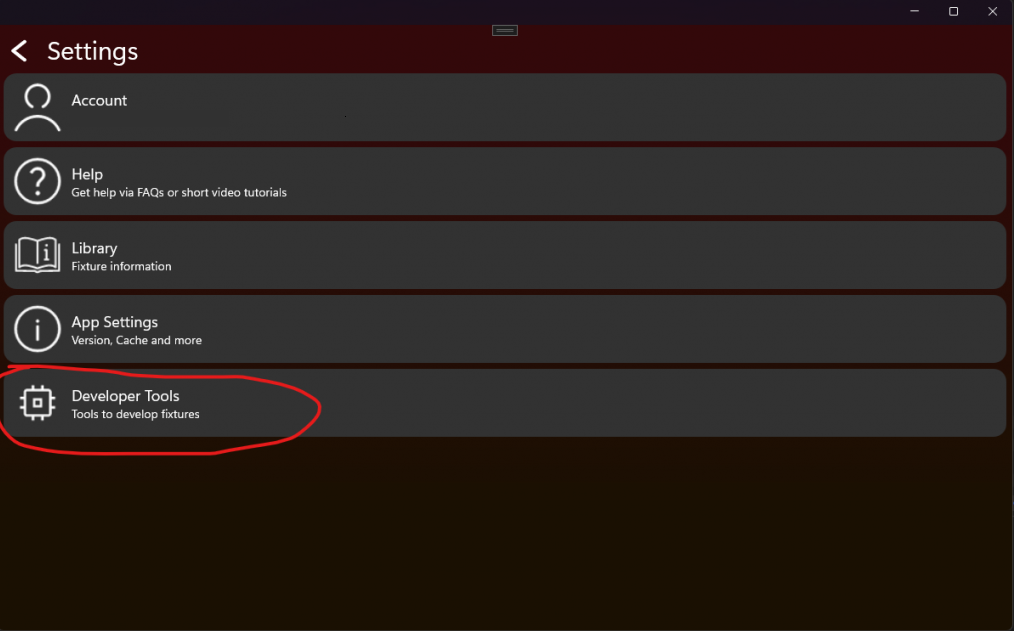
Click then on DFU File Generator:
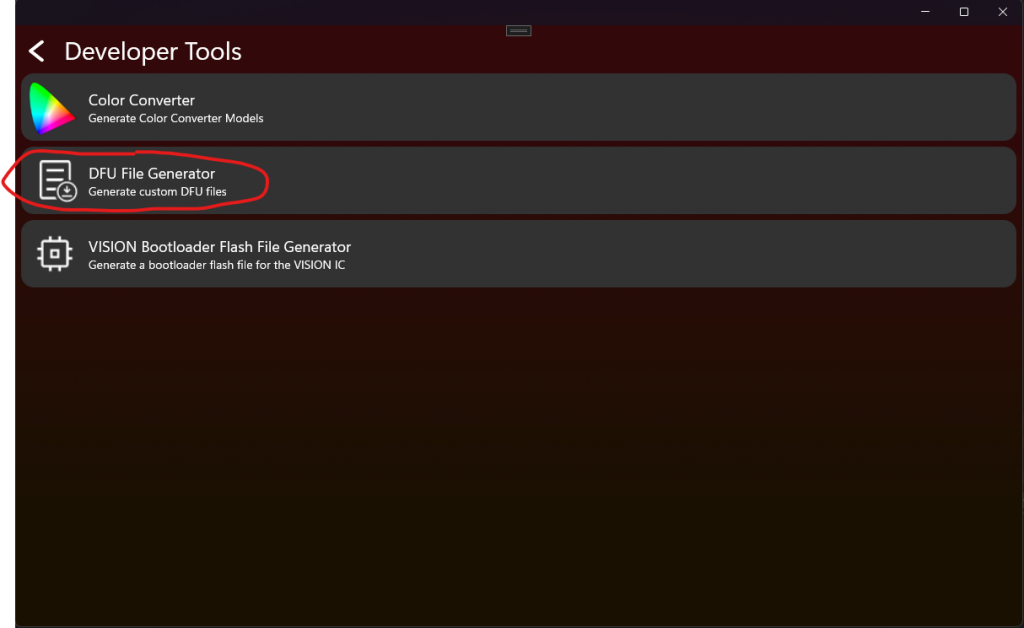
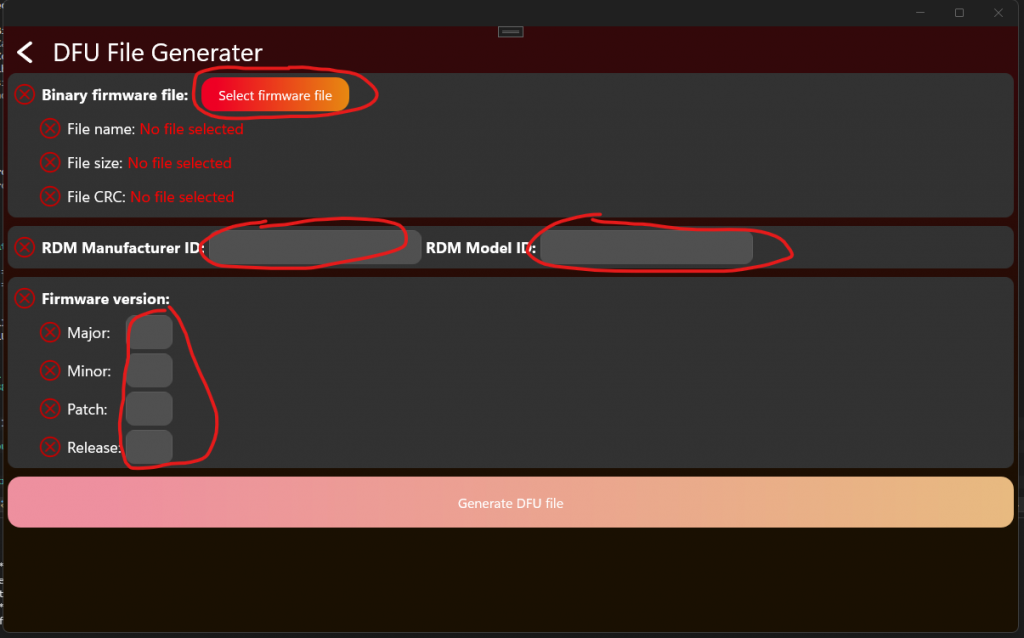
Now you are at the DFU File generator. Here you can put in your Application .Bin file, Your RDM Manufacturer Model and the RDM Device Model ID. Both in decimal and not hexadecimal.
Attention:
The DFU is secured using RDM Manufacturer and Device model id.
When you create a product you use this unique information to secure the firmware. This makes sure it is just able to be uploaded on this kind of fixture.
This is important that fixtures cannot be bricked with the wrong firmware. So make sure this is always correct.
Also put in the Firmware Version of the Application. The Vision app requires a standardized Versioning format x.x.x.x
The first is called Major. –> Indicates incompatible function to previous firmware
The second is called Minor –> Indicates added feature to previous firmware
The third is called Patch –> Indicates a bugfix to previous firmware
The forth is called Release –> Marks an Release for a public firmware verision. Always keep this 255 for public versions.
This is called Semantic Versioning https://semver.org/
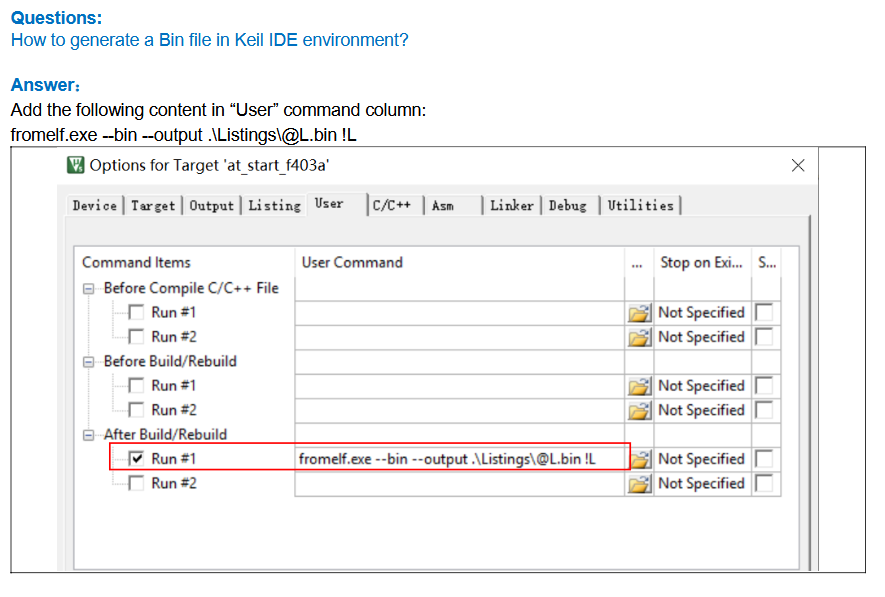
If you have followed the instructions from „Project Artery IC“ or „Project STM32 IC“ you can open Keil and build the Application Project in „ReleaseBL“ target configuration.
For Keil you have to add the following in the Target User Settings:
Add the following content in “User” command column:
fromelf.exe –bin –output .\Listings\@L.bin !L
Attention: Copying this line may is corrupted. make sure this are double hyphen.
It should look like this if you have filled the data:
The Manufacturer 61450 and RDM Device Model ID 2 are only our example Values and should not be used in your product.
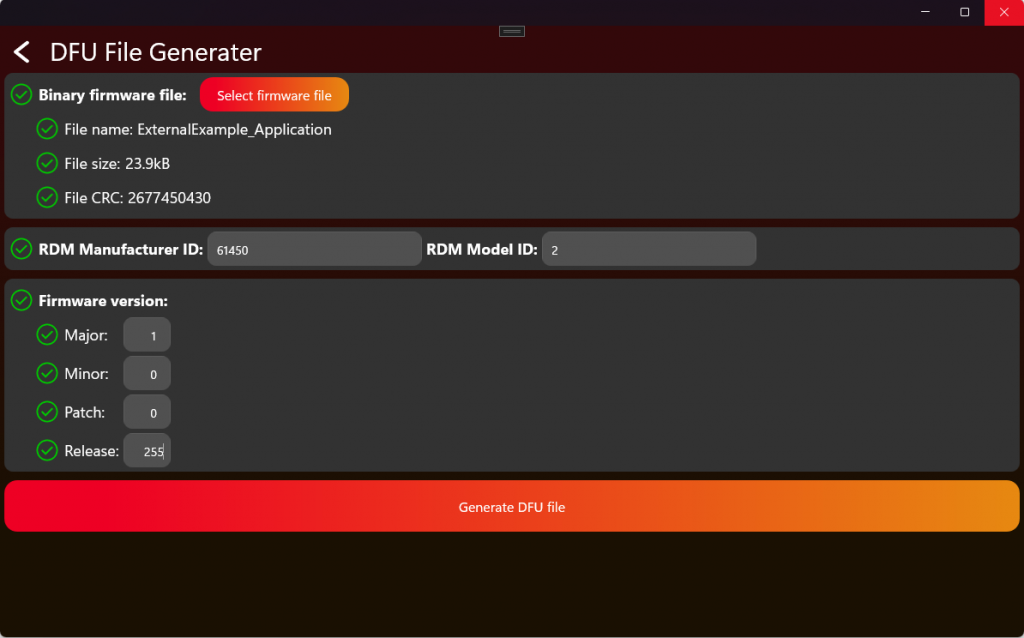
Now press „Generate DFU File“ to retrieve your file.
This file can now be used to either upload it in our webservice or manually select in the APP for update process:
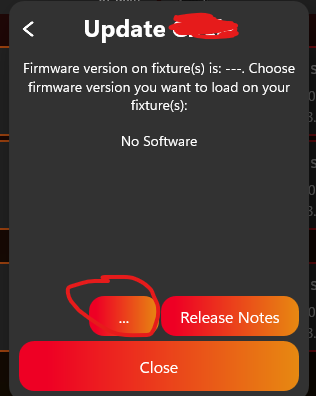
For more information about the upload process have a look at:
https://server.kk-t.eu/ExternalVision/ProductionFixture under Software Upload.