




Flash Modules
This page describes the production flashing step for the Vision module. In the standard production flow, flashing writes the required Vision bootloader to the Vision IC.
The fixture application firmware is normally not flashed in this step. The fixture firmware should be installed or updated through the firmware update procedure so that the bootloader and update process are verified correctly.
For faster production, it is optional to generate a fixture-specific bootloader flash file that contains the Vision bootloader together with the final App Control Configuration. This reduces manual app steps later in production.
If the Vision module already contains the correct bootloader and the final App Control Configuration, continue with the licensing step instead.
Flash bootloader
Download the correct Vision bootloader from the Vision Firmware page. Choose the file that matches the Vision hardware module used in the fixture.
- Select the correct bootloader file for the Vision module.
- Erase the Vision IC before flashing so the MBR is erased correctly.
- Flash the bootloader with the corresponding flash tool for the module.
- Power the fixture and confirm that the Vision module can be discovered by the Vision Control App.
Optional bootloader + App Control Configuration
A production flash file can include the Vision bootloader data and the final App Control Configuration. This can reduce manual app steps during production. The exact file depends on the Vision hardware module and the final fixture configuration.
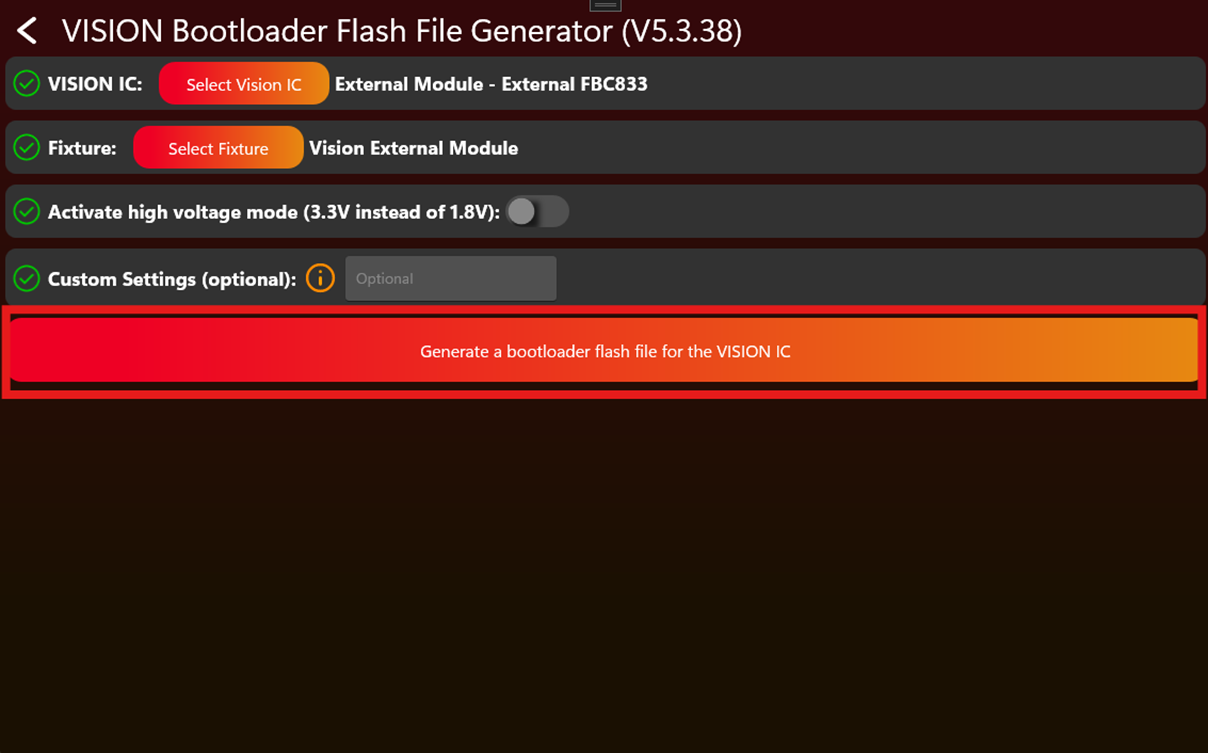
The Vision Control App includes a developer tool for generating a Vision bootloader flash file. This is optional and mainly useful when production should preload the App Control Configuration into the Vision module.
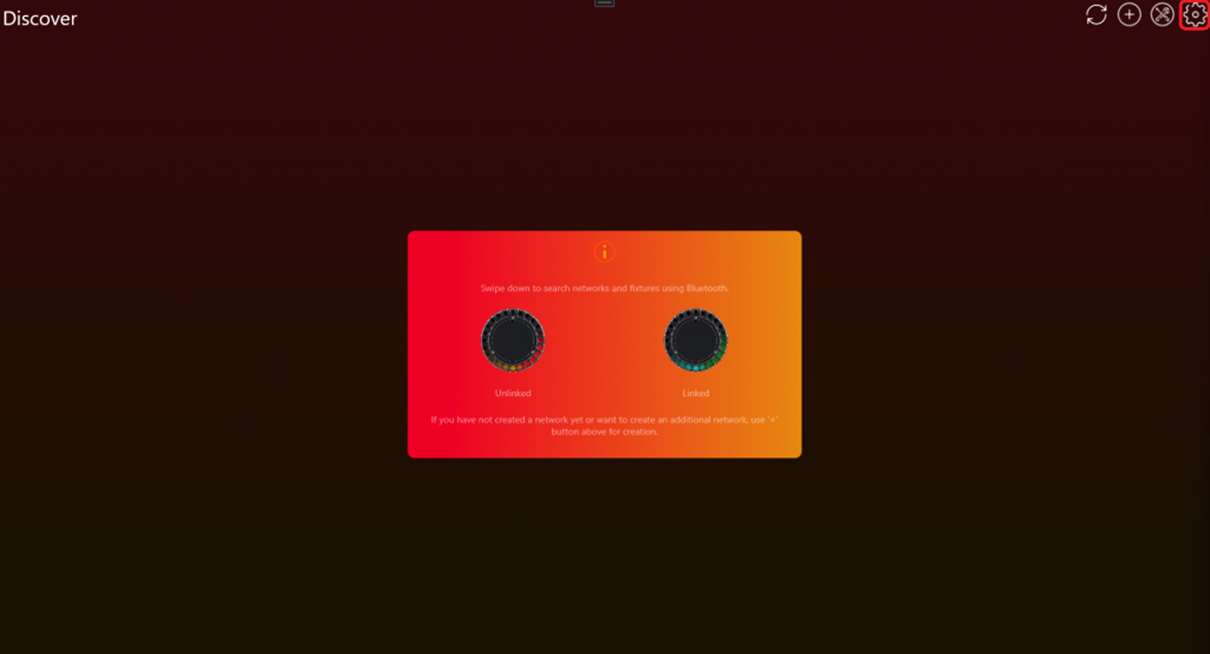
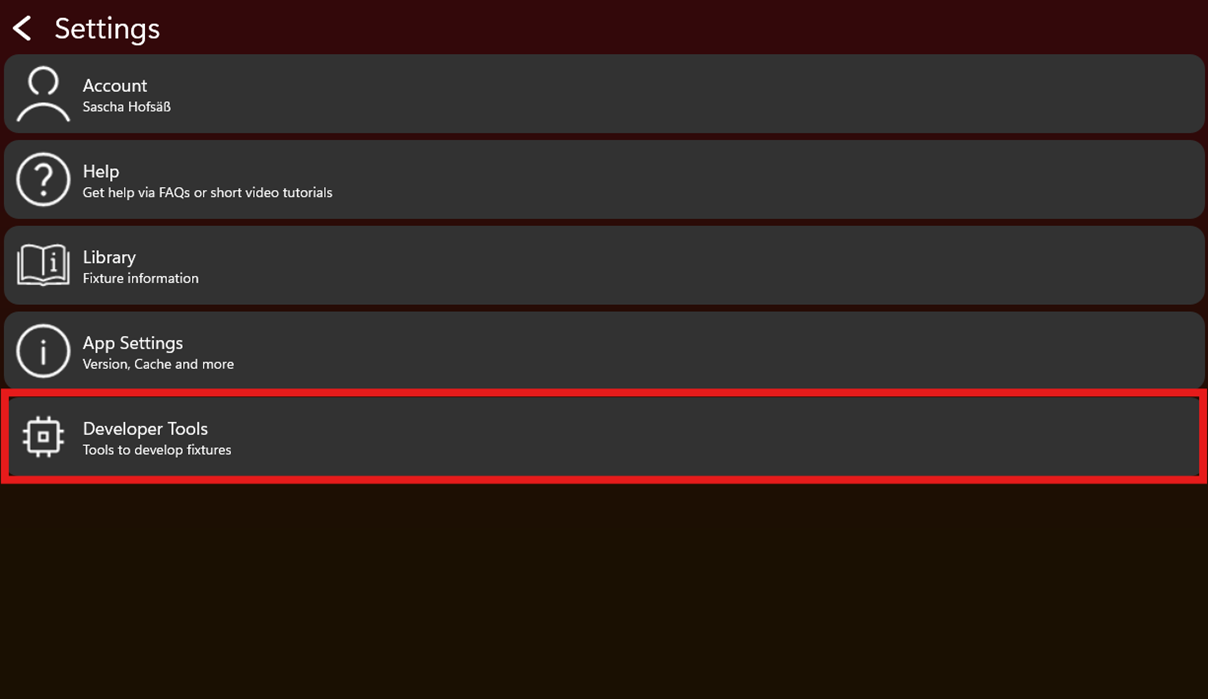
- Enable developer tools in the app settings.
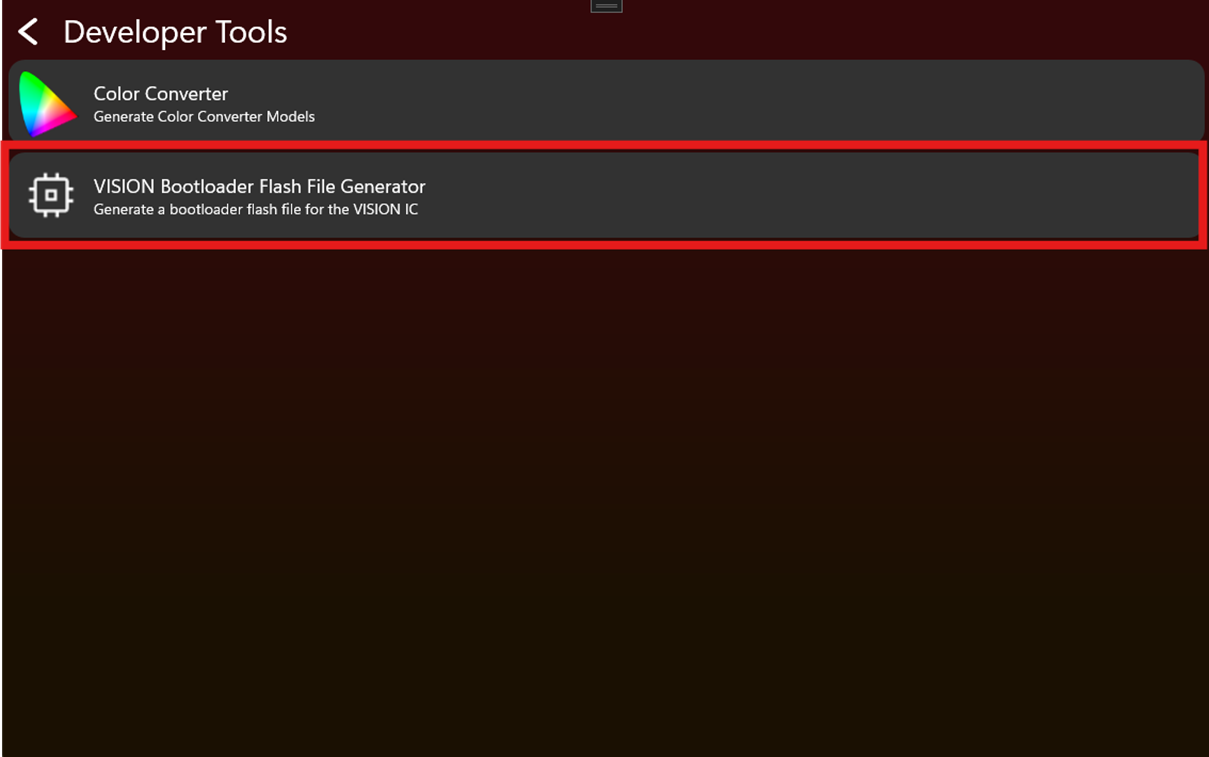
- Open Developer Tools.
- Open VISION Bootloader Flash File Generator.
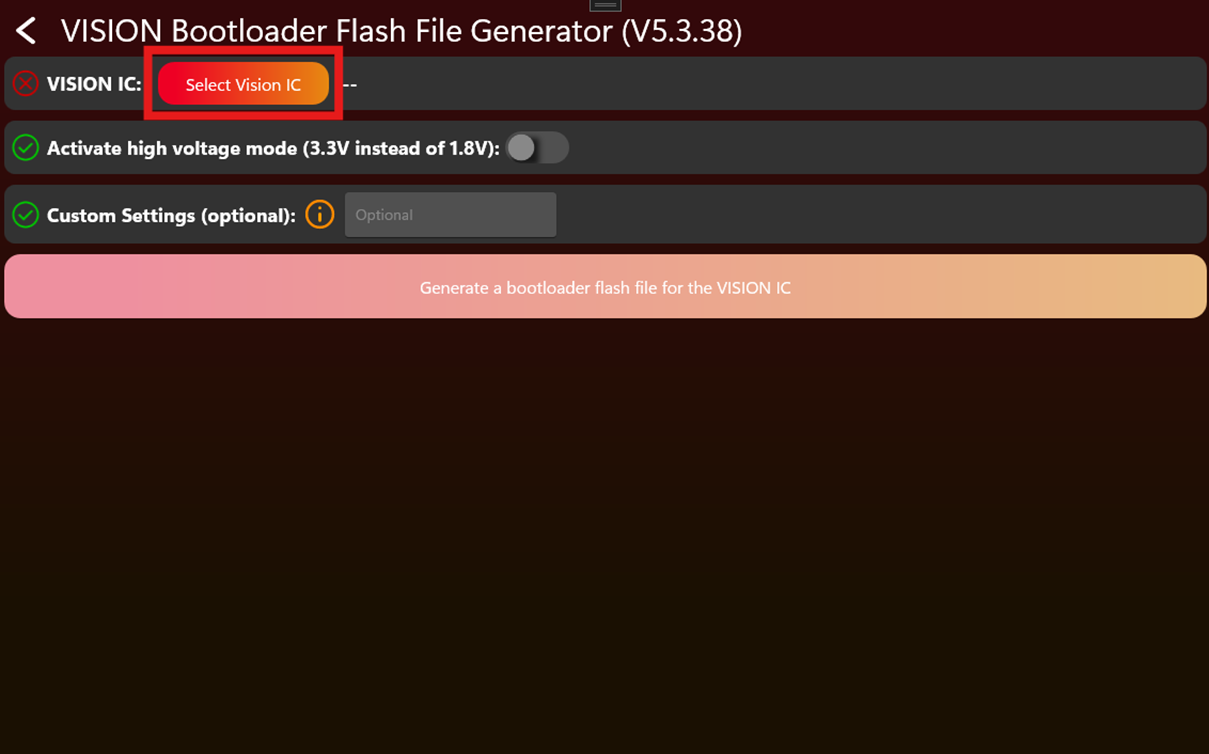
- Select the Vision IC or module type used in the fixture.
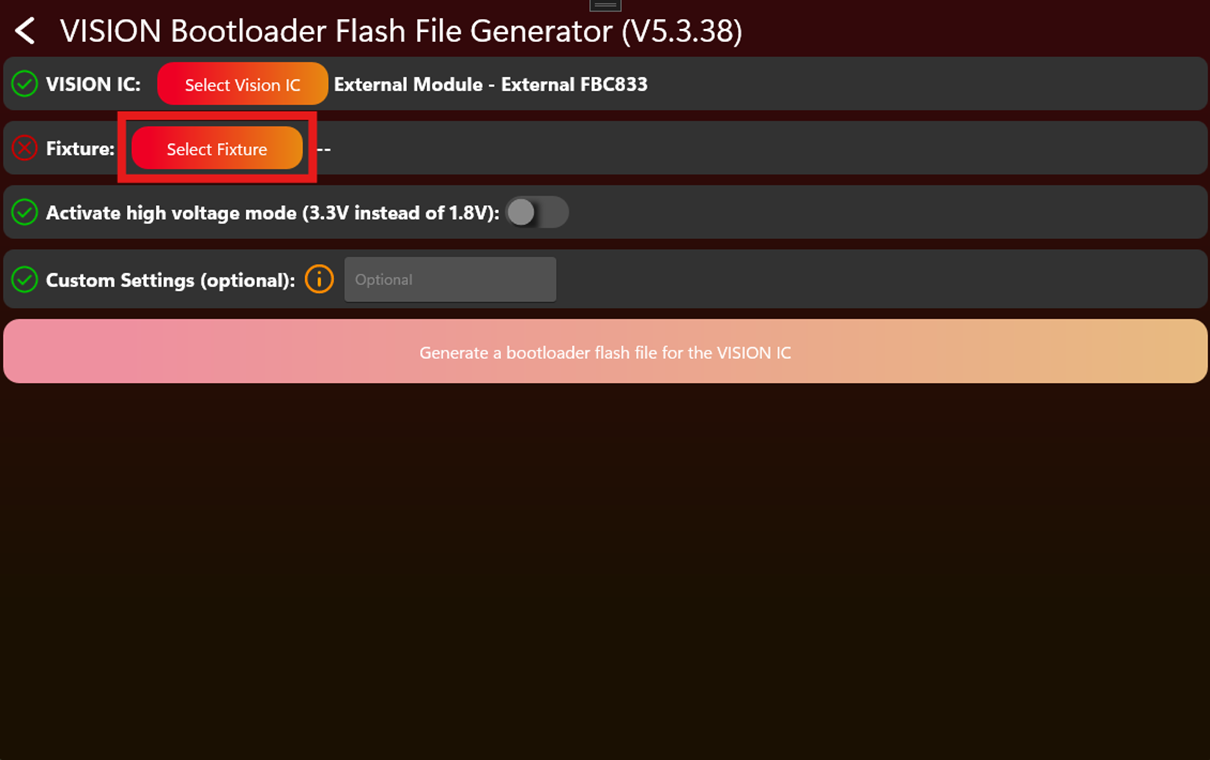
- Select the fixture from the App Library.
- Check optional settings only if they are required for the product.
- Generate the Vision bootloader flash file.
- Flash the generated file to the Vision IC with the approved production programmer, for example J-Link.
After flashing
Power the fixture and scan it with the Vision Control App. The fixture should appear as Vision Bootloader and be ready to receive the firmware.