




准备
Bring-up 和首次测试 setup
要求
为了测试 implementation,需要可运行 Vision Control App 的 device:
| Android | iOS | MacOs | Windows | |
|---|---|---|---|---|
| Minimum SDK | Android 10.0 (Api-Level-29) | 12.1 | 10.0.17763.0 | |
| Target SDK | Android 12.0 (Api-Level-32) | - | 10.0.19041.0 | |
| Bluetooth MTU MIN: 230 BYTES | Bluetooth 4.2 REQUIRED | Bluetooth 4.2 REQUIRED | Bluetooth 4.2 REQUIRED | Bluetooth 4.2 REQUIRED |
| NFC | OPTIONAL | OPTIONAL | - | - |
测试时请使用 Vision Control app。可以使用 iOS、Android 或 Windows,因此可以选择 PC、laptop、tablet 或 phone。也可以在一个 device 上测试某些 features,然后在过程中切换到另一个 device。
Install Vision Control App
- Windows Store: https://apps.microsoft.com/detail/9PN2FRZHH142
- Google Play Store: https://play.google.com/store/apps/details?id=de.kkt.Vision
- Huawei Gallery: https://appgallery.huawei.com/#/app/C114471795
- Vision Server Android Installer: https://server.kk-t.eu/api/v1/Tools/Install?tool=VisionAndroid
- Apple App Store: https://apps.apple.com/app/vision-control/id6467643102
Prepare Fixture and Vision Controller
- 确保 fixture turned on。
- 确保 Vision Controller 已 flash firmware。如果还没有,请下载并 flash 正确 bootloader。如果 fixture 是我们预配置的,或 bootloader 已经 flashed,可以跳过此 step。
- Fanstel BT840 (nrf52840):
https://server.kk-t.eu/api/v1/share/File?file=IQCONTROLLER_VISION_SPI_FBT840_BL1_2_1_SD_7_3_0.hex - Wuerth Orphelia III / Proteus III (nrf52840):
https://server.kk-t.eu/api/v1/share/File?file=IQCONTROLLER_VISION_SPI_WOIII_BL1_2_1_SD_7_3_0.hex - Fanstel BC833 (nrf52833):
https://server.kk-t.eu/api/v1/share/File?file=IQCONTROLLER_VISION_SPI_FBC833_BL1_2_1_SD_7_3_0.hex - Abluetech PTR9818 (nrf52840):
https://server.kk-t.eu/api/v1/share/File?file=IQCONTROLLER_VISION_SPI_FBT840_BL1_2_1_SD_7_3_0.hex - Abluetech PTR9813/PTR9813+ (nrf52833):
https://server.kk-t.eu/api/v1/share/File?file=IQCONTROLLER_VISION_SPI_FBC833_BL1_2_1_SD_7_3_0.hex - Ebyte E73-2G4M08S1C / E73-2G4M08S1CX (nrf52840):
https://server.kk-t.eu/api/v1/share/File?file=IQCONTROLLER_VISION_SPI_E73840_BL1_2_1_SD_7_3_0.hex
Scan and Connect
- Open Vision Control App,并确保 internet connection 可用。
- Login with existing account,或 register new account。
- 第一次使用 app 时会打开 prepare wizard。请 enable Bluetooth & Location services。支持和测试过的 devices list: https://iqservice.glp.de/index/SupportedDevices
- App 会打开 Discover page。
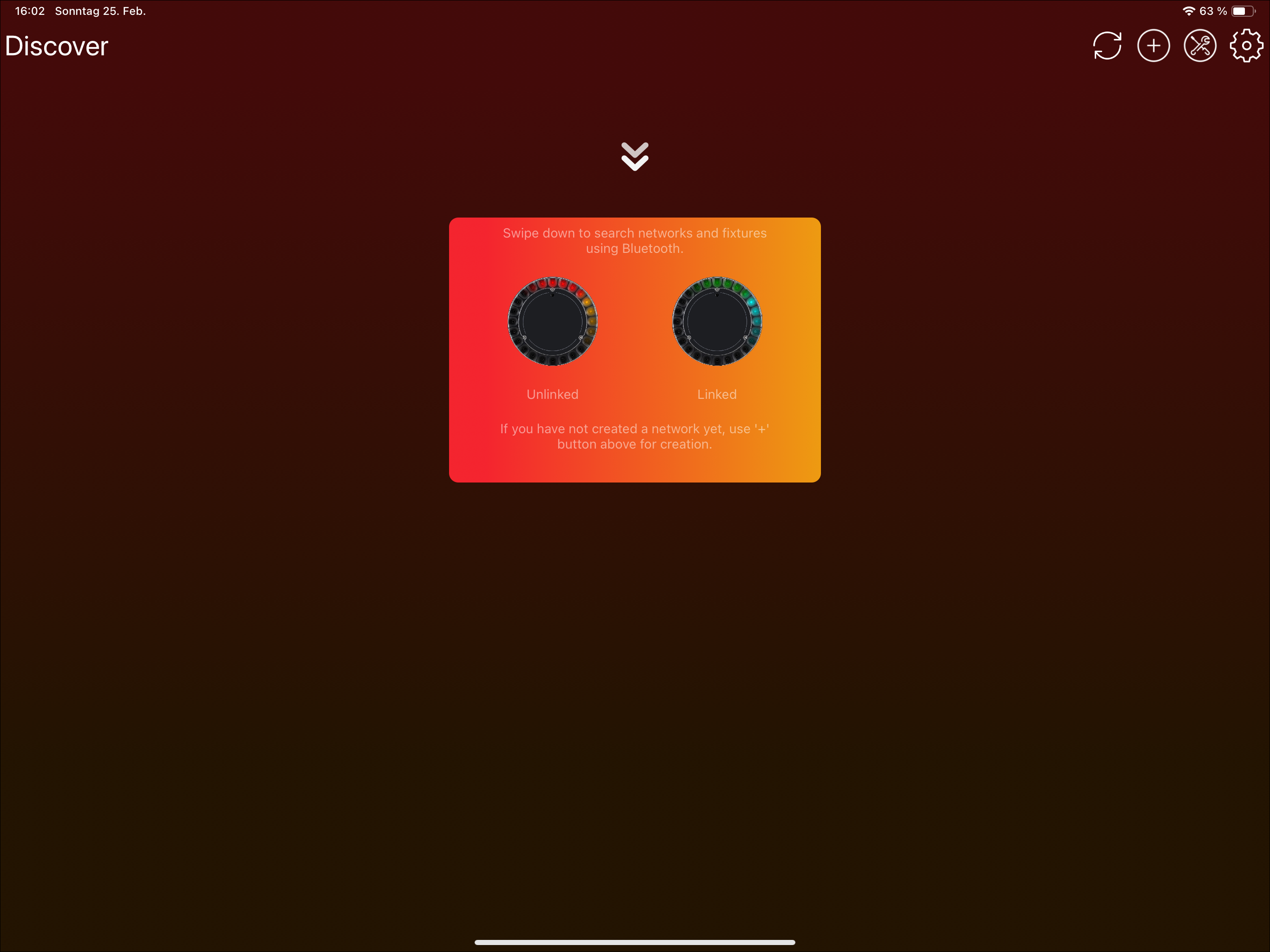
- Trigger Bluetooth scan。Tablet 可使用 refresh icon 或 swipe down;Windows 使用顶部 refresh icon;phones 通常 swipe down。
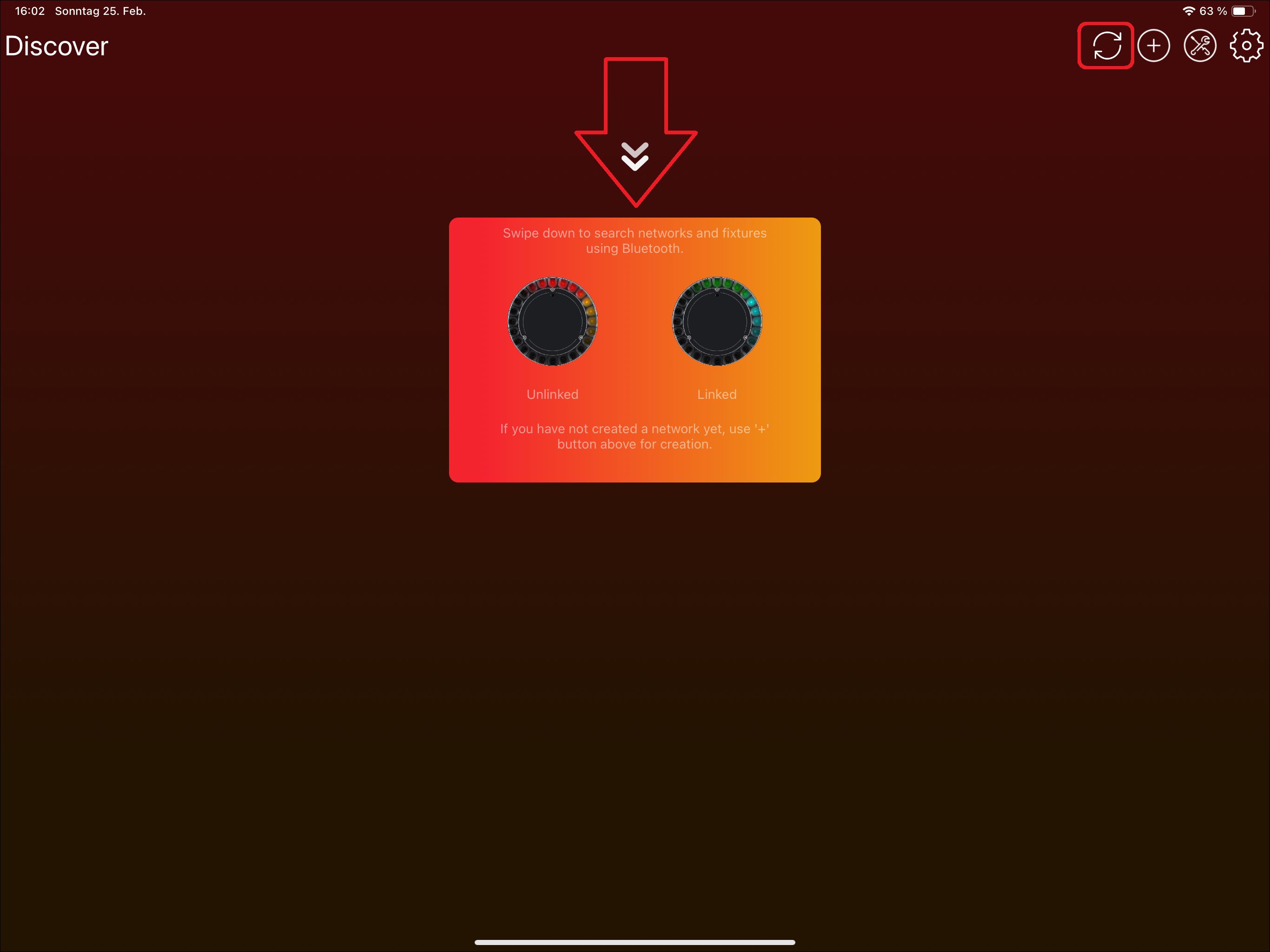
- Device 会通过 Bluetooth 搜索 available fixtures。
安装 Vision Firmware
如果已经 flash bootloader,或者 Vision module 上已经有 bootloader,请使用 Vision Control app 安装最新的 Vision firmware。如果 fixture 是我们预配置的,可以跳过此步骤。
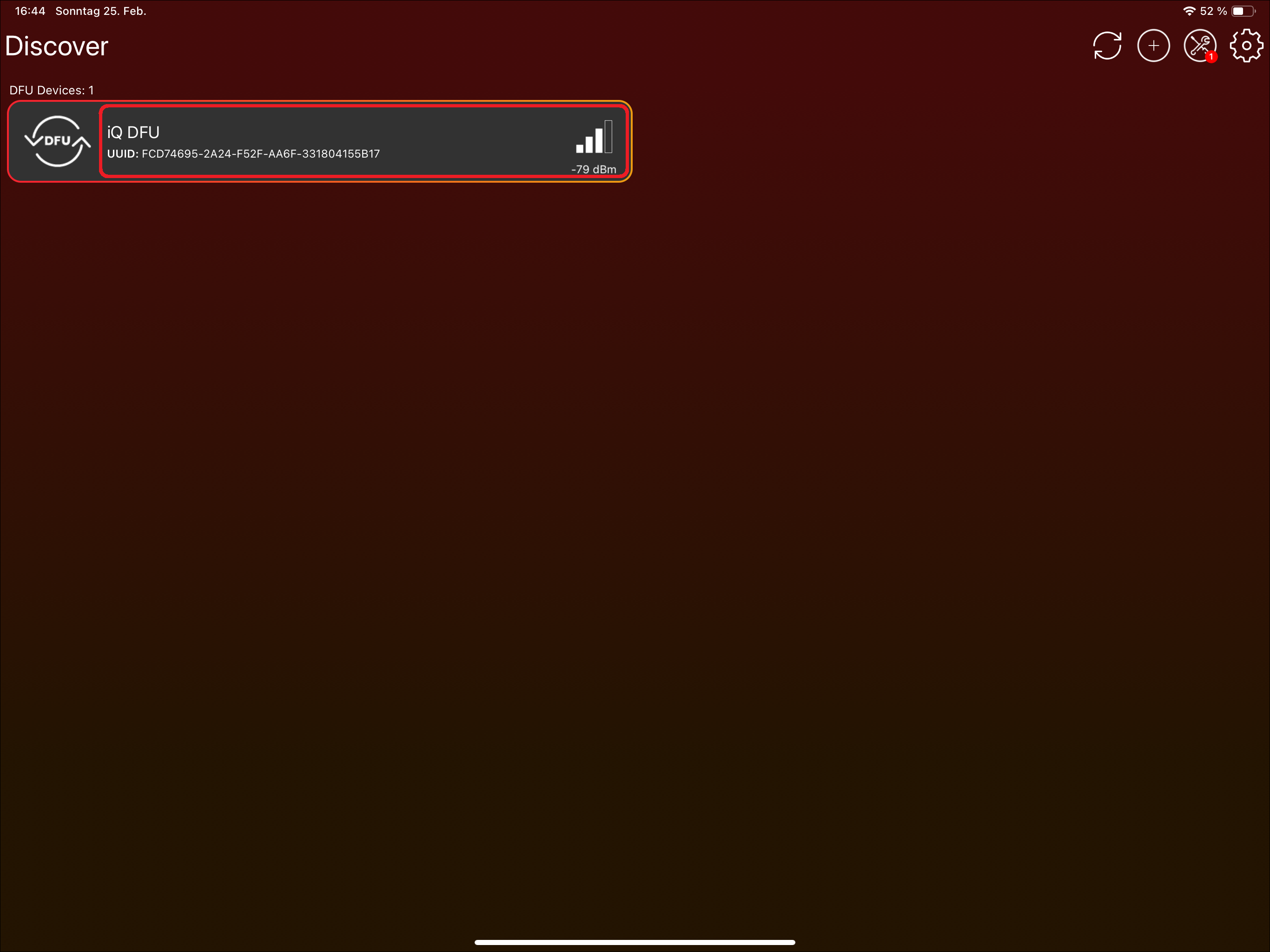
- 点击 "Vision Bootloader" fixture。不要点击 DFU icon;该 icon 只用于 select / deselect fixture,此步骤不需要使用它。
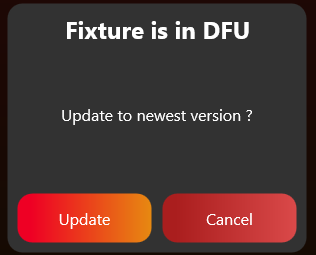
- Application 会提示更新 Vision firmware。点击 "Update" 可安装最新 available version。
- 如果遇到 connection issues,请在 App Settings -> Connection Settings 中降低 MTU size。此方法对 Windows 尤其有帮助。
检查 Fixture 是否可被发现
- 第一次 bring-up 时,如果通信还没有正常工作,fixture 可能不会马上显示在 app 中。
- 如果正在测试我们的 example board,请先打开电源。打开后应该可以在 app 中被发现。
启用 Test Mode
- 点击顶部 gear 进入 Settings。
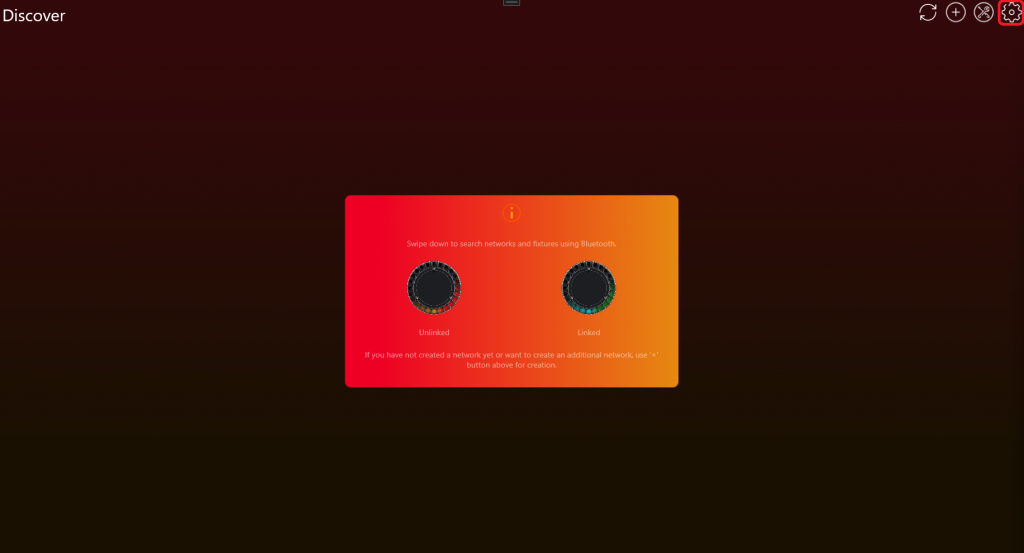
- Click App Settings。
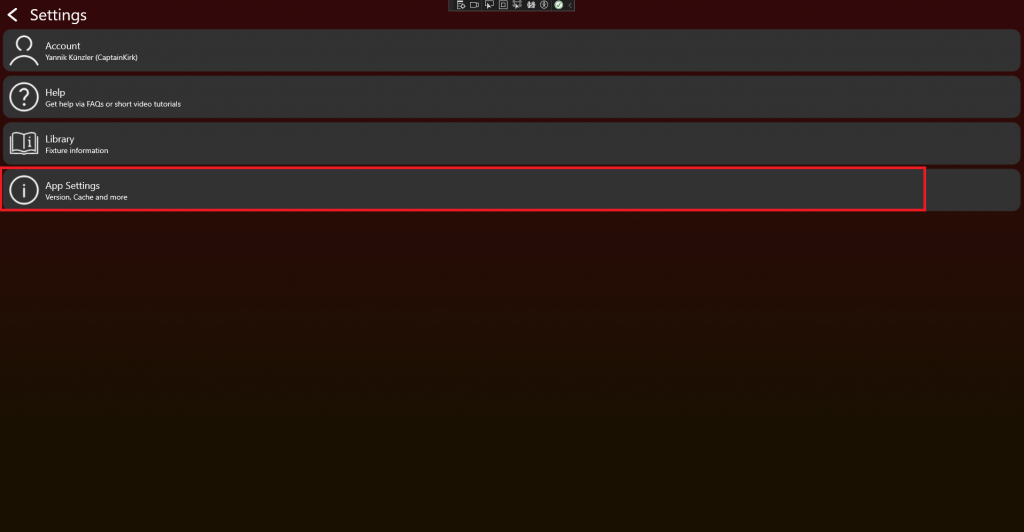
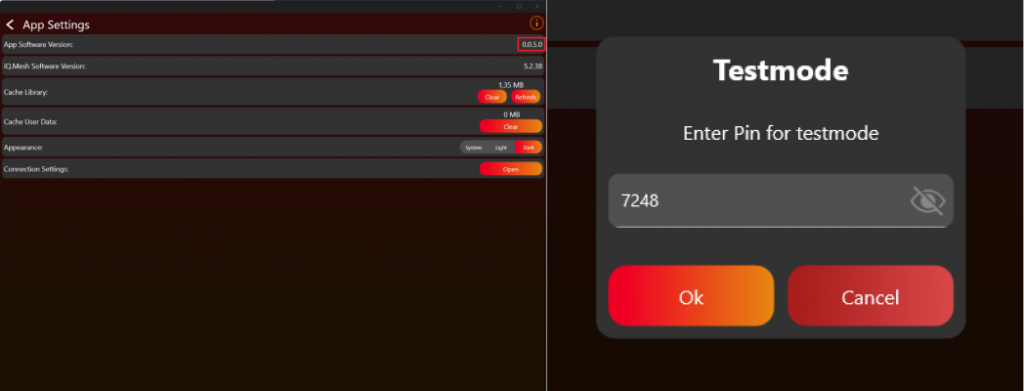
- 点击 App Software Version label(例如 0.0.5.0)两次。出现 prompt 后输入 PIN 7248,Test Mode 即会 activated。
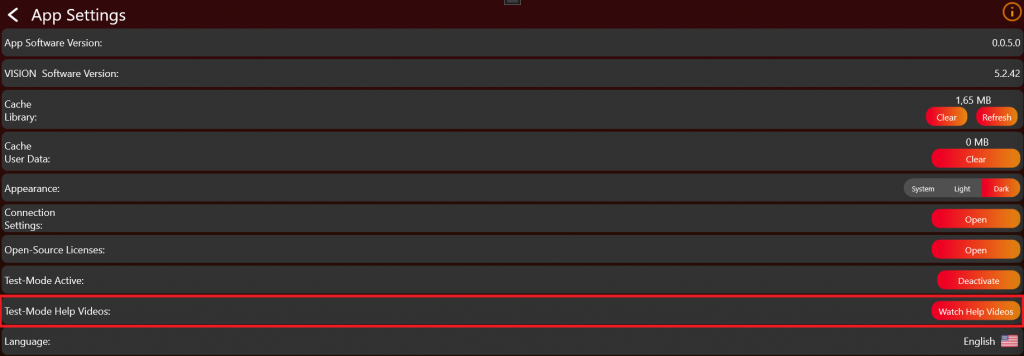
- Test Mode 成功 enabled 后,会出现 additional help videos。点击 "Watch Help Videos" 可查看。
- 返回 Discover page,并重新 scan fixture。
检查启动和广播状态
- 检查 Vision Controller 的 signal LED 在 startup 时是否亮起。只有 controller 已经通过 app 收到 firmware 后,LED 才会在启动时亮起。还要确认 main module 已 flash correct bootloader。Controller 每次 start 时 LED 会亮 5 seconds。如果 controller 仍在 Sleep Mode,或 flash 了 wrong firmware,LED 不会亮。
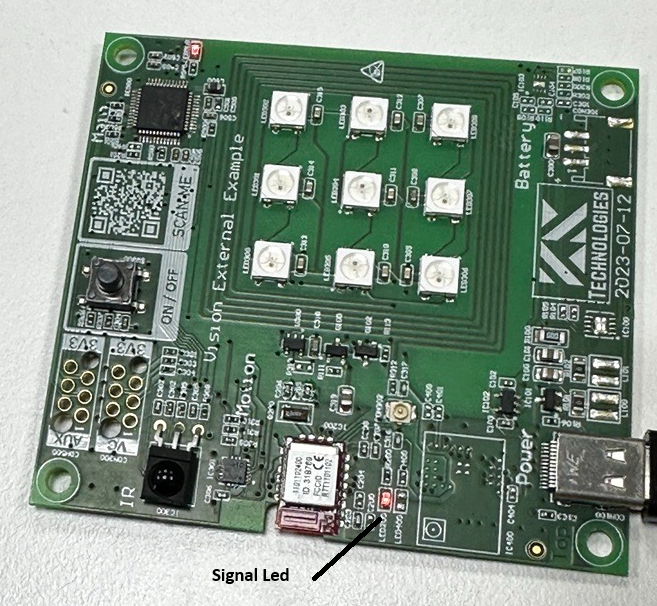
- 确保 main module 使用 correct bootloader,并确认 schematic 正确。
- 确保 Vision Controller 处于 normal operation。请确认
FIXTURE_IS_ONpin set high。更多信息见 System documentation。 - 另一个可能 issue 是 32.768 kHz crystal。请确认它 connected and working。Bootloader 可以 without crystal 工作,但 firmware 需要 crystal。
如果 implementation 已经工作,请确保 input source 设置为 Vision。通过 RDM Vision command,controller 会识别 input source,并通过 Bluetooth advertise itself。Vision Controller 只在 input source 为 Vision 时 advertise itself。
- Scan 后,fixture 应像这样 available:
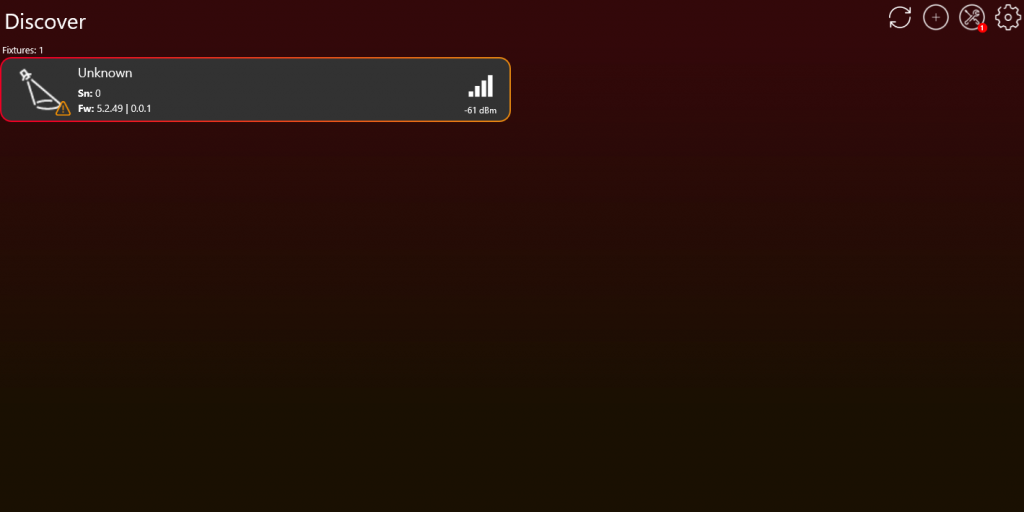
- 如果 fixture 不 available,请确认正确应答 RDM Vision command。更多信息见 Vision RDM -> PIDs -> Command。
- 如果 fixture 显示为 "Unconfigured",说明 communication interface 可能未工作,或 Vision RDM Command 未正确应答。Vision RDM command checksum 也必须 correct。
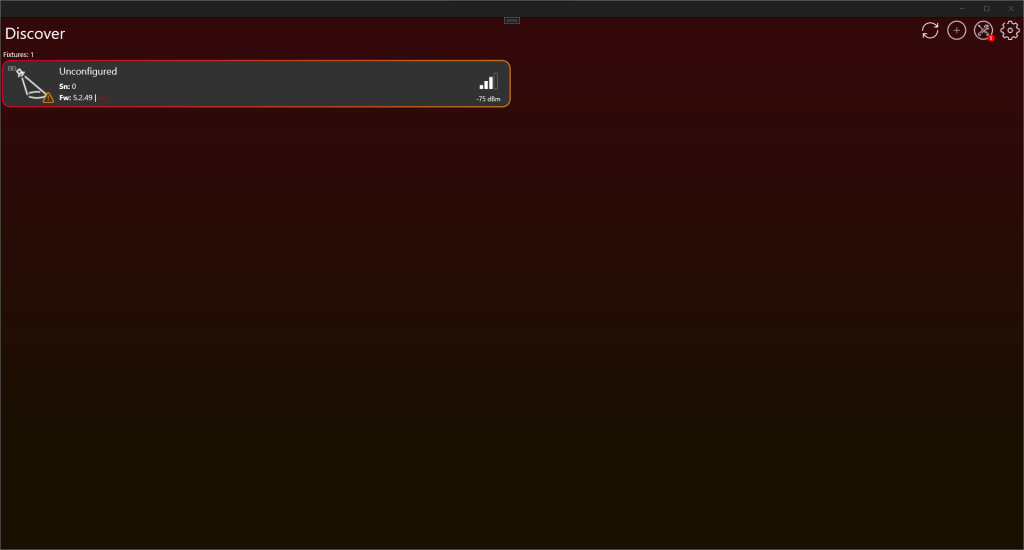
首次通信检查
- 如果这还是第一次 implementation test,请先确认通信是否正常,再继续后面的测试。
- 确认 SPI communication 正常工作。如果使用 SPI Library,请查看 SPI Library 章节最后的测试步骤,确认它按预期工作:https://server.kk-t.eu/ExternalVision/SPIInterfaceVision
- 主要通信通过 RDM 和 Vision RDM Command 完成。请检查是否周期性收到 Vision GET command。
- 确认所有 required information 都被正确应答。
检查 Bluetooth 广播信号质量
- 完成上述检查后,再确认 fixture 的 Bluetooth advertising signal quality 是否良好。
- 如果没有发现任何 fixture,请先确认 Bluetooth module available。
- 如果有 Sample Board,请将 fixture 的 Bluetooth advertising signal strength 与 Sample Board 对比。Fixture signal quality 不应明显 worse。
- 如果没有 Sample Board,fixture 距离 20 cm 时,Bluetooth advertising signal quality 应保持 above -60 dBm。这是一个 very broad minimum standard。
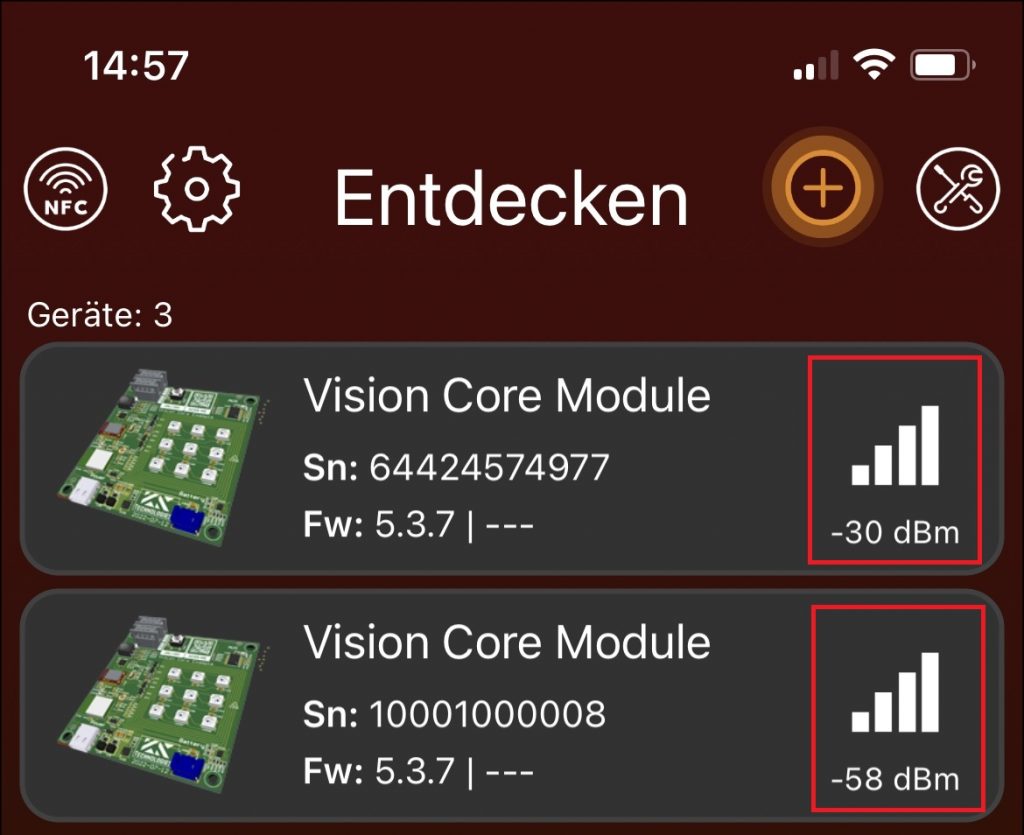
连接 Fixture
点击 fixture 连接 device 与 fixture。不要点击 icon;该 icon 只用于 select / deselect fixture,目前不需要。
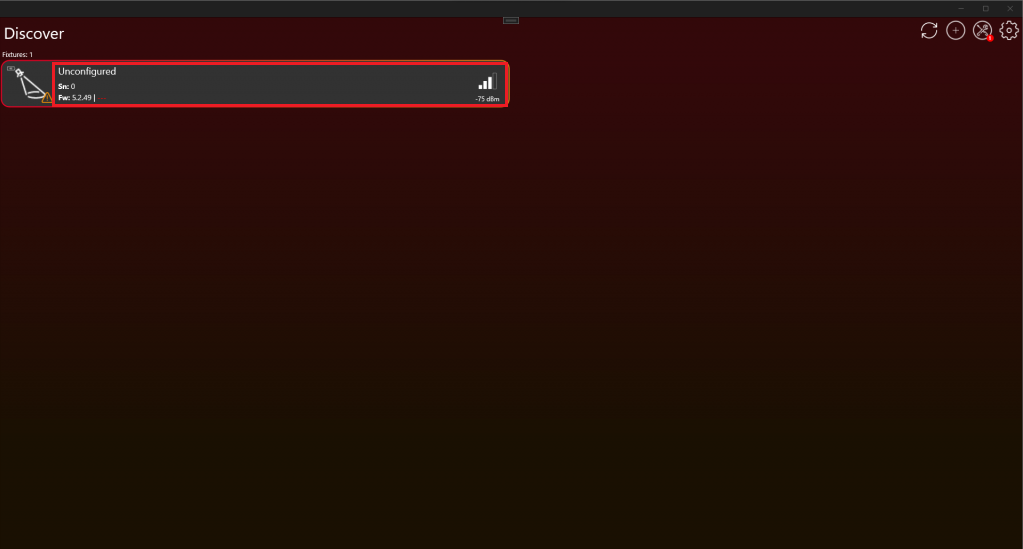
连接后应如下图所示。现在可以开始测试。
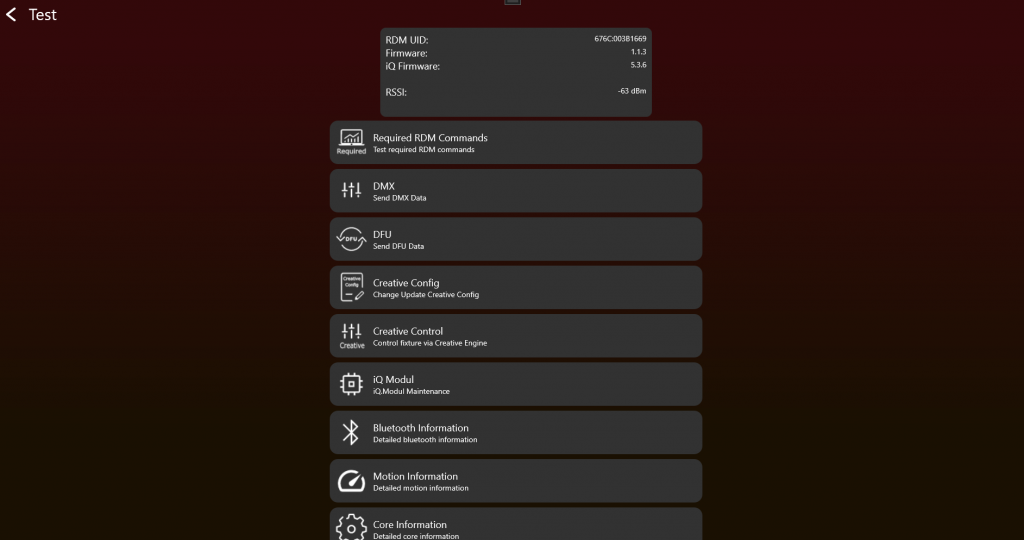
现在可以手动测试 product 所需 functions。当所有 functions 按预期工作后,开始创建用于 App Control 的 App Control Configuration:
https://server.kk-t.eu/ExternalVision/TestCreative
之后使用 certification tool 测试 product。该 tool 会 step by step 测试所有 functions:
https://server.kk-t.eu/ExternalVision/TestTestVerify